Software test report SilverFast HDR
All who digitize many images on a professional basis, know the problem: In order to avoid quality losses, the picture must be during scanning already as much as possible adapted to the desired final result. Now if the scanner operator is another person, than the one who defines the picture, then it becomes complicated. To place both people under one hat proves in the practice of professional photography as difficult to impossible. Each picture would have to be defined in advance - if the result is not as desired, the image has to be re-scanned in a time consuming procedure.
If a picture was scanned optimally for a certain purpose, it's possible that one has to scan it again for another purpose- that's time-consuming and can thereby become very quickly expensive too.
LaserSoft Imaging offers with SilverFast HDR a tool, which should solve exactly those problems. In combination with a newer SilverFast scanning software version, it allows the separation of the scanning procedure and the picture adjustments.
The second Generation of SilverFast HDR (Version 8) was released in the middle of 2012. It has a new GUI (Graphical User Interface), so that it is now up to date. Compared to the previous version, the user interface has become clearer and clearer, so that a novice quickly copes with it as in the previous version. All controls can be placed by mouse per drag & drop to anywhere on the screen, so you can spend your working environment as you like yourself.
What does the SilverFast HDR software?
SilverFast HDR is a software for processing raw graphic data. It can process both: camera raw data and special raw-scan data provided by SilverFast Ai.
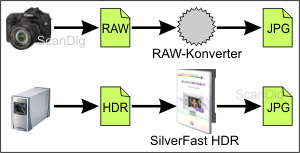
This raw-scan data is graphic data from the scanner as captured by the sensor - no gamma-, color- or other corrections are made, as they are done normally automatically through the scannning software, in order to receive a "correct" picture. LaserSoft Imaging assigns the name HDR for this kind of the raw data. HDR stands here for High Dynamic Range and refers thereby to the increased dynamic range, which one gets by using the 48Bit raw data.
In order to receive this raw data at color pictures, one sets the scan type to 48 bit HDR or 64 Bit HDRi when scanning. If you are scanning grayscale pictures it would be 16 bit HDR or 32 bit HDRi. All image settings are deactivated - one can only adjust the type of target, output quantity, output resolution and - if necessary - (de)activate the hardware-based dust and scratch correction; the scanning software produces a file, which contains the raw data of the scanner. Contrary to camera raw data here this are TIF files, which contain all color information. If one views this raw picture with a picture viewing- or a picture processing program, one sees a way to dark picture, which in principle contains all captured picture information, but is so however not yet usable.
Now thats the part of SilverFast HDR. The program looks like - and can be operated like the SilverFast scanning software. If one opens with this program a raw-scan data file made in the just described way, one sees the picture how SilverFast would have scanned it with normal color adjustment (thus not HDR). Now one can set all picture adjustments as usual at SilverFast. Everything what one would have normally adjusted before the scan, can now be set afterwards. If one achieved the desired result, one only needs to click on the process-button, which replaces the scan button of the normal SilverFast scanning software, specifiy the file name and receive the finished image file.
Different versions of HDR 8
SilverFast HDR 8 is up to now available in those two versions:
SilverFast HDR: the standard version without additional features
SilverFast HDR Studio: Studio version with additional features
The Studio version includes some special Features like the the Auto-Adaptive Contrast Optimization AACO, save images in JPEG2000 format, Auto-IT8-Calibrations, an expert-mode is available and there is also a 16-Bit Histogram. Also masks and layers can be used for iSRD and the selective color correction with the HDR Studio version. This is quite interesting for professional users. If the seted NegaFix Profiles do not match you can also edit them or create new profiles at the Studio version.
Different versions of the previously SilverFast HDR 6.6
Here are a few words about the different previously available versions of SilverFast HDR 6.6. Up to the release of HDR 8 there were five versions of HDR 6.6 available:
- SilverFast HDR: the standard version without additional features
- SilverFast HDR IT-8: with IT-8 target
- SilverFast HDR Studio: Studio-version with additional features incl. IT-8 target
- SilverFast HDR Studio PhotoProof: Studio version with additional features incl. IT-8 target and PhotoProof plug-in
- SilverFast HDR Studio ColorServer: Studio version with additional features incl. IT-8 target and ColorServer automation tool
SilverFast HDR studio has compared to SilverFast HDR some additional features like the automatic color optimization AACO, the support of the JPEG 2000 format, the function-extended soft masking USMPlus, the CloneTool and the printing tool PrinTao.
The additional option PhotoProof extends SilverFast HDR by a proof function, with which you establish a softproof as well as print out with help of PrinTao the obligatory proof-prints with included FOGRA media-wedge on a calibrated and linearized output device.
ColorServer is an automation tool, with which operation sequences for the processing of large quantities of pictures can be automated. Thus you can let automatically run the gradation- and tone range corrections, color range conversions and all further with SilverFast HDR possible picture adjustments.
Soft-Proofing with PhotoProof
The CMYK separation, thus the preparation of RGB data to printable CMYK data, is usually a complex affair. PhotoProof can simplify this procedure. It allows the creation of softproofs for the user with only few mouse clicks, so that the output color range of the picture is being simulated on the monitor.
On a linearized and calibrated output device assisted by PrinTao a proof print of the picture in the output color range can be made. The integration of a FOGRA medium wedge (different medium wedges for different measuring instruments are provided) secures the legally binding effect of the proofs - provided the evaluation of the printed medium wedge, which requires additional hard- and software, shows the deviations are within the given tolerances.
Automatization and batch processing with the ColorServer
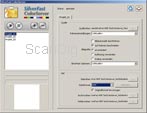
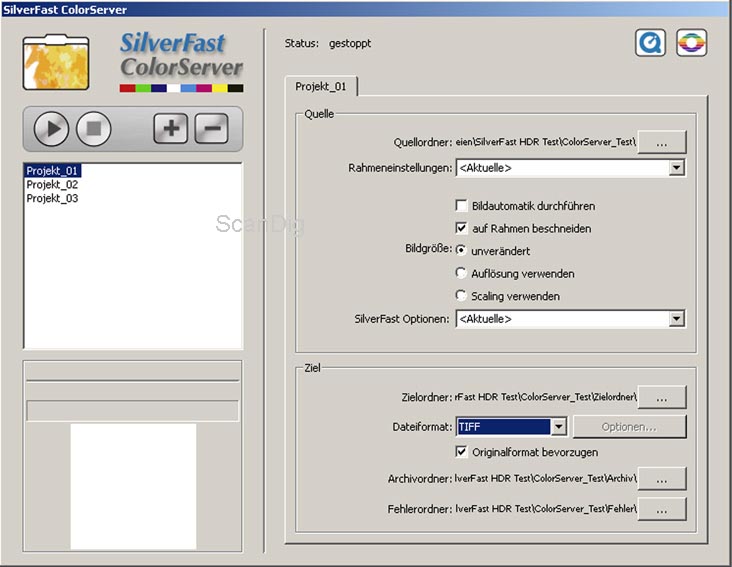
The automation tool ColorServer makes the batch processing of image files possible. The program works with so-called Hotfolders. Those are folders, which are constantly supervised by the current program. If a new file is being saved in a Hotfolder, this file is being processed according to the adjustments - all adjustments possible in SilverFast HDR are available.
The processed file is then stored in the before chosen target folder and the original is being shifted from the Hotfolder into the likewise before chosen archive folder. Furthermore an error folder can be determined in which all files will be stored, where during the processing an error arose.
HDR 8 practice: processing of raw data with SilverFast HDR
Many different workflows can be realized with SilverFast HDR. We want to show you in the following chapters how to work in general with SilverFast HDR and the available Add-Ons, and describe the appropriate proceedings.
First we will describe the work routine, how one processes raw scans with SilverFast HDR:
Step 1: Scanning of targets
The scanner operator can digitize quickly many targets without having to care about the picture adjustments. He must only specify and define the desired output size and resolution, as well as the scan area and whether the hardware-based dust- and scratch removal has to be activated or deactivated. The raw scans can now be passed on or archived.
Step 2: Production of final picture files with SilverFast HDR
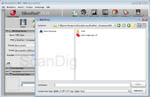
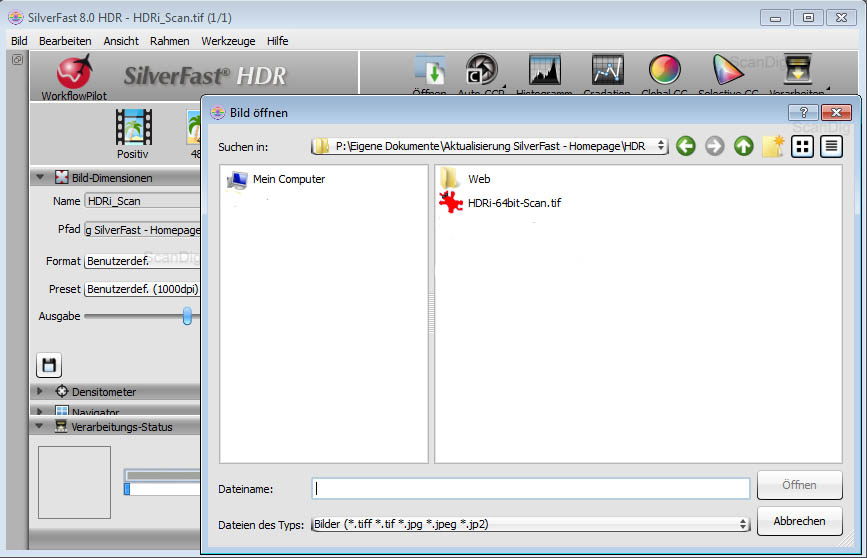
Now the data can be processed with SilverFast HDR. With the Open Button you can open the Files as one is used to it normally with the PC. Now you can set all picture adjustments as usual at SilverFast. Everything what you would have normally adjusted before the scan, can now be set afterwards.
This way e.g. gradation curves, hue, colors, hardware-based dust and scratch correction (only HDRi) and sharpness can be adjusted. As soon as you are satisfied with the result, the finished image file can be saved - one simple click on the "process" button is enough, and after entering the desired file name and the destination folder the picture is made. This works very fast: after a few seconds - depending on the computer speed - a 2800 dpi scan of a 35mm slide is finished and saved.
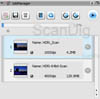
At the Job Manager, the images are displayed when multiple images are selected to open at the same time. With the Job Manager, you can even jump between different files back and forth. The setting of a particular frame can also be transmitted to an other. For example Images of a series can be processed faster. With the Job Manager you don´t have to start the processing to save the files for each individual image. A click on the start button is enough to start the processing of all the files inside.
The processing of camera raw data takes place in the same way as described in step 2. Only in the picture adjustments window, where the usual options like exposure, white-balance, brightness and contrast are, the camera raw specific adjustments are being added: there is a selection of white-balance presets, a magenta-green color controller, a controller for the luminance smoothing and one for the reduction of picture noise.
HDR 8 practice: production of a print using PrinTao
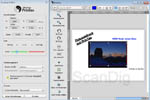
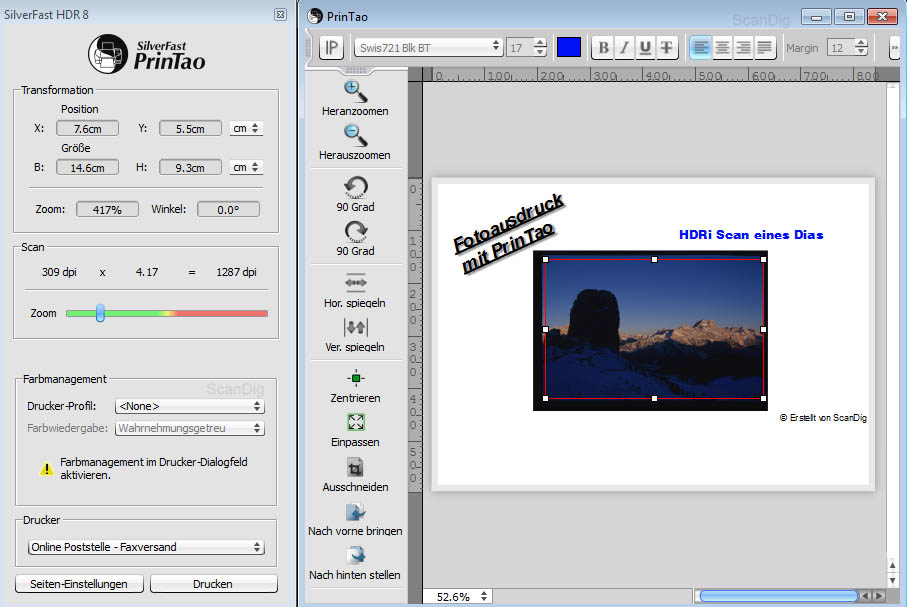
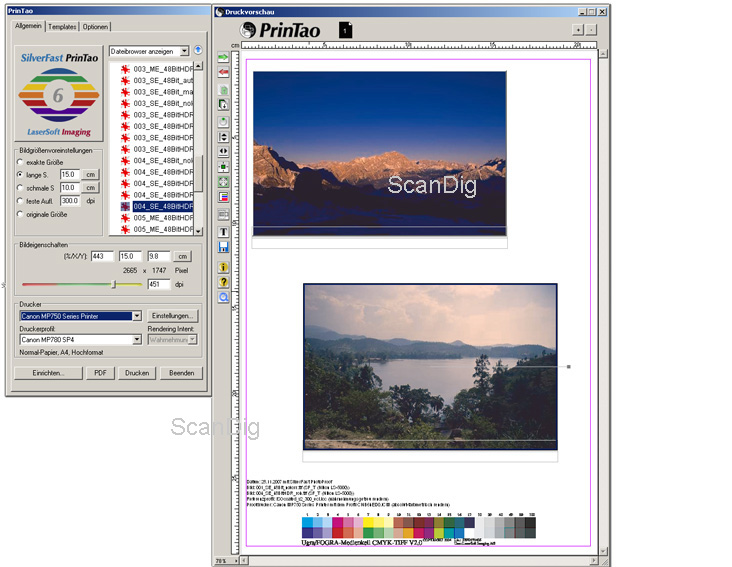
After editing you have to start PrinTao with the button next to the preview. PrinTao allows you to create quick and easy prints. In PrinTao the images can be provided with text and copyright notices.
There are a lot of different types of fonts for the text available. From classic Arial, over near letter-quality and versions which appear to be handwritten everything is available. You can also add a shadow to the written. The embedded color management allows color consistent printing.
HDR 6.6 practice: automatization of the raw data processing with the ColorServer
With the optional ColorServer one can automate the functions of SilverFast HDR for comfortable processing of big amounts of pictures. Concerning the processing of raw scans one can proceed as follows:
Step 1: Scanning a representative picture
First a picture must be selected, on which the adjustments will be based, specified and applied to all other pictures of that batch. This picture then becomes scanned with the SilverFast scanning software in the HDR mode.
Step 2: Adjusting the first picture
The raw file obtained in such a way is opened through the VLT in SilverFast HDR. Now all picture adjustments can be made until the desired result is reached. The color management adjustments of the options dialogue box are among it. Those adjustments can - as usual - be saved as presets in SilverFast.
Step 3: Setup ColorServer
Now the adjustments of the ColorServer must be specified. First a new project must be started, to which all of the following adjustments apply. An unrestricted number of projects can be defined. First the source folder - the Hotfolder - has to be specified. Here one choses the folder into which the SilverFast scanning software saves the raw-scans.
Hereby various adjustments to the processing of the raw-scans can be made, e.g. whether the picture should be cropped at the scan frame or not. It can also be specified whether the files are to be processed with previously in SilverFast HDR saved presets or if the current adjustments should be applied.
As last point the target-, archive- and error-folders as well as the desired file format are definied.
With one click on the "play" key the automated processing becomes activated. From now on each Hotfolder specified in a project is supervised, and each new picture saved there is processed according to the adjustments.
Step 4: Scanning the target
Now one can start scanning. If the scans are saved directly in the Hotfolder, ColorServer takes over immediately the processing of the data, and saves it in the above specified listing structure. From now on one must thus only "feed" the scanner - the rest works by itself.
Camera raw data can be in the same way automated processed as the SilverFast rawscans. This way one can copy or move e.g. during a photo production the data of the memory card directly into the ColorServer Hotfolder, which is then processed automatically.
HDR 6.6 practice: production of a proof-print using PhotoProof and PrinTao
Step 1: Setup PhotoProof
In the dialogue box for the PhotoProof adjustments PhotoProof can be activated and configured. Here one specifies the proof reference profile (the output color-space for the later print), selects the medium wedge to be included, and specifies the rendering intent. As soon as PhotoProof is activated one sees in the SilverFast preview window the picture in the simulated output color-space (Softproof).
Step 2: Setting the picture
With the help of the SilverFast functions the picture can now be adapted to the desired final result. If one is satisfied, one saves the picture.
Step 3: Output of the Proof with PrinTao
Next one starts PrinTao through the VLT. Here one sees except for the medium wedge selected with the PhotoProof adjustments a blank page, on which now using the file browser the before processed picture(s) can be placed on. As soon as everything is arranged and the printer settings are done, the proof can be output.
The picture quality with SilverFast HDR
The finished files issued by SilverFast HDR do not differ from the files, which the SilverFast scanning software issues with the same settings. Both programs work with the same algorithms - the produced files are thus accurately alike. That's good, because the quality of the scans provided by SilverFast is still on the highest level.
Who needs SilverFast HDR, PhotoProof and ColorServer? - Application examples
SilverFast HDR addresses professional users, who want to separate the scanning procedure from the picture adjustments. This makes sense for example if the targets are available only during a limited time-period. The images can be digitized and returned as fast as possible to the customer, then afterwards the raw data can be processed.
Or the person, who uses the scanner, is temporally or spatially separated from the person, who processes the data - when using SilverFast HDR that's no problem. The scanner operator doesn't have to know how the picture should look when it's ready - theoretically he doesn't have to be even familiar with the subject: the basic adjustments (resolution, output size, gamma value, ICE) can be preset and the operator has just to "feed" the scanner with new material. There is no special knowledge necessary.
If the picture result has to be co-ordinated with a third party, the raw data can be re-used over and over again and the result adapted. Without SilverFast HDR the targets would eventually have to be scanned again, which is time-consuming and eventually costly.
The optional PhotoProof at at HDR 6.6 is a tool for the work in the pre- print stage. Everyone who must prepare data for print, gets with SilverFast HDR in connection with PhotoProof a tool into the hand, with which the CMYK separation can be accomplished in a simple and comfortable way. A softproof can be established and in few steps a color-obligatory contact proof with merged FOGRA medium wedge can be made on a calibrated and linearized output device. The legally binding effect can be guaranteed by a colormetric evaluation of this test wedge and following output-log of an analysis.
The ColorServer option at HDR 6.6 makes the fast, automated processing of large quantities of pictures possible. So e.g. photographers can benefit largely from this software, by sending the data of the memory card during a digital photo production directly to the ColorServer, which applies then all prior to this fixed basic adjustments and corrections automatically to all pictures. The data could then be directly submitted for agreement and selection to the customer.
Also to those, who process many pictures as HDR rawscans in batches, ColorServer can simplify the life. E.g. if many pictures of a similar photo production are to be digitized, then one can produce raw-scans from those pictures, and from the raw-scans with assistance of ColorServer automatically make small, basic-corrected JPGs, which can be used for the selection.
Strengths and weaknesses of SilverFast HDR
SilverFast HDR offers the professional user a comprehensive software package for the adjustment and improvement of the workflow. The separation of scanning procedure and picture adjustments is very useful for a professional. But with the WorkflowPilot also a beginner or an occasional user can optimize the pictures like a professional.
The new WorkflowPilot replaces the old ImagePilot, and guides the user step by step through each of the required workflow. The workflow pilot assists in form of explanatory text and available QuickTime movies. The workflow pilot prevents errors in the operation and provides especially beginners and casual scanner users considerable assistance. Advanced users of course can do without the workflow pilot and implement a standalone workflow.
The main program can be used and works with the same algorithms as the SilverFast scanning software. The picture results are thus as expected on highest quality (naturally depending on target and scanner). The user interface has become clearer and clearer, so you can work with it after a short practice very well and efficiently.
Unfortunately the practically Tools like Color-Server, Photo-Proof and VLT are not available at SilverFast HDR 8. Especially the Batch-Tool Color-Server was very helpful.
Summary and Conclusion
The HDR software offers many very useful features for the ambitious private an semi-professional and professional user. The separation of scanning procedure and picture adjustment simplifies the workflow much, both with FineArt-work and with the bulk processing. The HDRi format allows to exploit the full power of the scanner and archive it. A handy tool for a fair price. A handy tool for a fair price.
Back to the index software tests
|


 DxO Optics Pro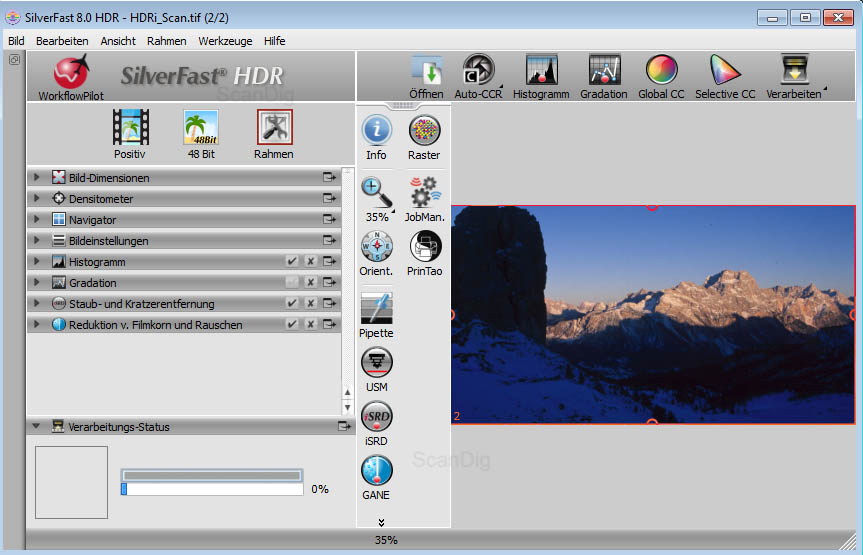
)